Troubleshooting Guide for Google Play Games Errors
Solution 1
-
1.
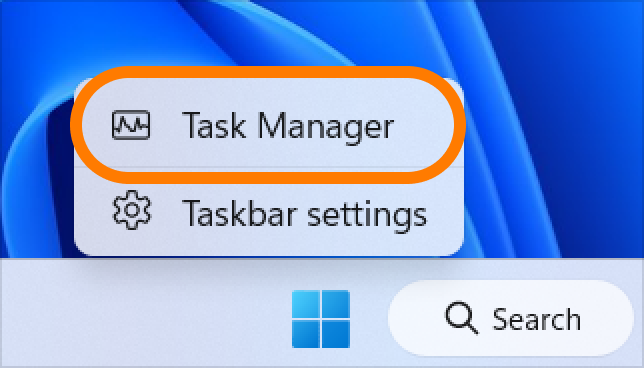
Press Ctrl + Alt + Delete on your keyboard and select [Task Manager], or right-click the taskbar (the bar at the bottom of the screen) and run [Task Manager].
-
2.
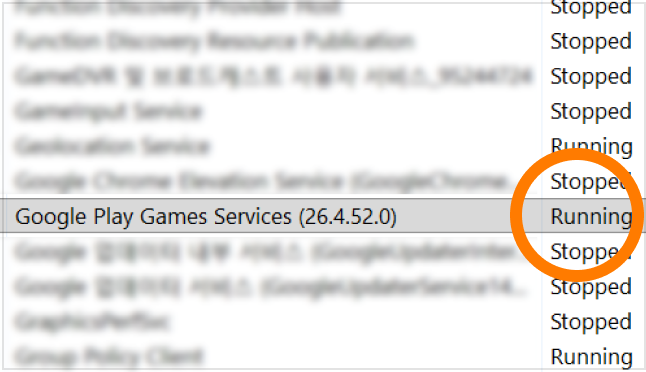
Click the gear-shaped [Services] tab in the left menu of Task Manager, and check if the status of 'GooglePlayGamesServices' in the service list is 'Stopped'.
-
3.
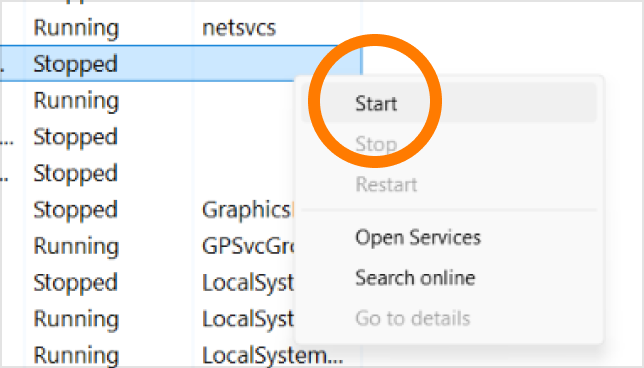
If it is 'Stopped', right-click on 'GooglePlayGamesServices' and click 'Start (S)'.
-
4.
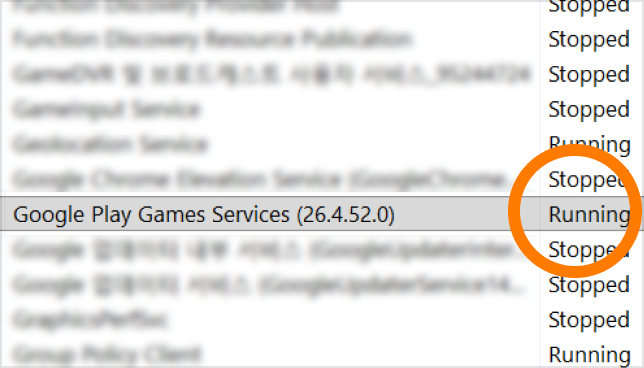
Once the status changes to 'Running', please restart the game.
Solution 2
-
1.
Please uninstall Google Play Games following the path below.
Settings -> Apps -> Installed apps -> Uninstall 'Google Play Games'.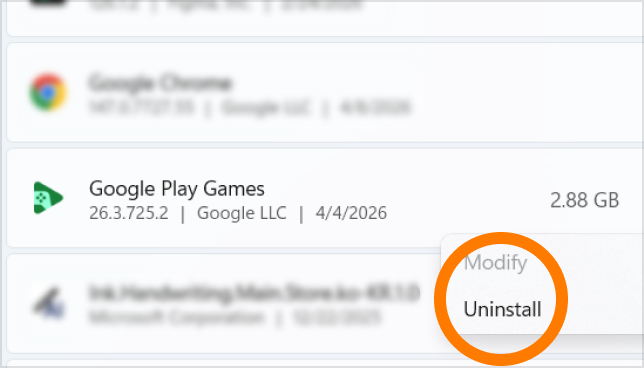
-
2.
Then, go to the official Google Play Games website and click 'Download on PC' to download the latest file.

-
3.
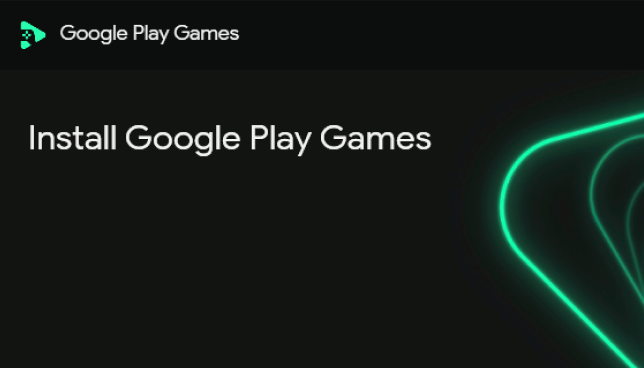
Run the downloaded installation file and follow the instructions to reinstall Google Play Games.
-
4.
Restart the game in the reinstalled Google Play Games.